
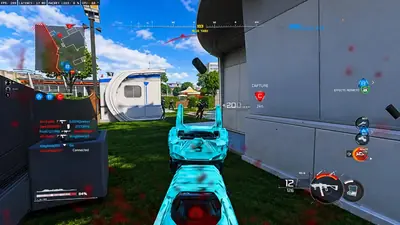
Settings for Modern Warfare 4 PC: Performance, Visibility, and Controls
Want smoother Modern Warfare 4 gameplay? Explore PC graphics, display, and performance settings that can help balance visual quality, FPS, and responsiveness.
Settings for Modern Warfare 4 PC play cover graphics, display, controls, and gameplay. Having more options does not automatically mean better performance.
If you want smoother gameplay and clearer visibility, understanding the most important PC settings is a good starting point.
1. Choose the Right Display Settings
Display configuration can influence how responsive and comfortable the game feels.
Consider the following:
- Display Resolution: Use your monitor's native resolution whenever possible.
- Refresh Rate: Select the highest refresh rate supported by your monitor.
- Display Mode: Test the available display modes and choose the one that performs best on your system.
- V-Sync: Evaluate whether enabling or disabling it provides the best experience for your setup.
- Field of View: Adjust FOV based on your preferred balance between peripheral awareness and target visibility.
Avoid copying another player's configuration without considering your own monitor and hardware.
2. Optimize Graphics Settings
Graphics settings have a direct influence on GPU workload and visual clarity.
For competitive gameplay, prioritize settings that keep important visual information easy to recognize.
Texture Quality
Texture quality affects the detail of surfaces and objects. Higher settings generally require more video memory.
Shadow Quality
Shadows can improve visual realism but may increase GPU workload.
Screen Space Reflections
Reflection settings influence how surfaces display environmental lighting and surrounding objects.
Anti-Aliasing
Anti-aliasing helps reduce jagged edges and improve the appearance of objects.
Modern Warfare 4 also introduces Filmic SMAA T2X and additional image-quality options. callofduty.com
3. Use Available Upscaling Technologies
Modern Warfare 4 supports multiple upscaling and frame-generation technologies.
These include:
- NVIDIA DLSS 4.5.
- AMD FSR Redstone.
- Intel XeSS 3.
The best option depends on your graphics hardware and desired image quality.
Test different configurations rather than assuming one technology will always produce the best results.
4. Improve Visual Clarity
Visibility matters in competitive multiplayer.
Modern Warfare 4 introduces several PC visual improvements, including an enhanced FOV option, additional sharpness settings, and weapon visual-effects masking.
Players can experiment with these native settings to find a configuration that makes opponents and environmental details easier to distinguish. callofduty.com
5. Configure Mouse and Input Settings
Responsive input is important in first-person shooters.
Consider reviewing:
- Mouse sensitivity.
- ADS sensitivity.
- Mouse polling rate.
- Key bindings.
- Input device settings.
Modern Warfare 4 also supports sub-frame mouse polling, which is designed to improve mouse precision.
The best sensitivity is largely personal. Consistency is more important than frequently changing settings.
6. Monitor Your FPS and System Performance
Modern Warfare 4 includes a built-in Benchmark Tool.
It provides performance information such as average FPS, CPU usage, GPU usage, ping, and input latency.
This can help identify whether your system is limited by its processor, graphics card, or another performance factor.
Activision's published PC information also lists a recommended configuration targeting 90 FPS at high settings in multiplayer. callofduty.com
7. Keep Your System Updated
Performance problems are not always caused by in-game settings.
Check that:
- Your graphics drivers are current.
- Windows is updated.
- Background applications are not consuming excessive resources.
- Your game installation is up to date.
- Your PC meets the game's requirements.
Final Thoughts
The best Modern Warfare 4 PC settings depend on your hardware and preferred gameplay experience.
Start with display configuration, adjust graphics settings, test available upscaling options, and use the built-in benchmark to evaluate the results.
Small adjustments and consistent testing can help create a smoother and more responsive multiplayer experience without relying on unnecessary modifications. For tool comparisons, see Modern Warfare 4 gameplay tools and PC gaming optimization threads in the archive.